
Installing or Upgrading Communicator v7 – Windows
Communicator v7 – Business Edition for Windows
Desktop application licenses must be enabled by support. Please contact support to have your application licenses enabled, and your temporary password set. This must be done prior to completing the steps below. If you are upgrading from a previous version, this step is not necessary.
Please do not delete any previous versions of Communicator before completing this step. Deleting previous versions will happen automatically during the install.
Step 1 – Precautions
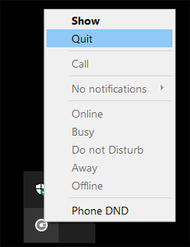
If you are presented with any messages claiming that “Your version of Communicator is not supported”: ignore this message and close Communicator. Right-click on the Tray Icon (by the system time) and completely close Communicator.
Step 2 – Download and Launch Communicator
- Click HERE to download the latest version of Communicator for Windows.
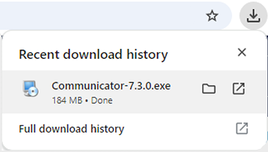
- For Google Chrome: Locate the downloaded file and run it. You may also launch the install directly from your browser using the “Open Now” icon.
Step 2a – Download and Launch Communicator (Microsoft Edge)
Microsoft Edge uses SmartScreen, which requires extra steps:
- Hover over the download warning, click the 3-dot menu on the far right, and select Keep.
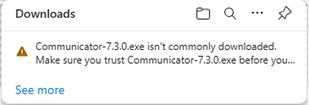
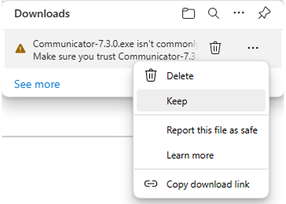
- Click Show More, then Keep anyway.
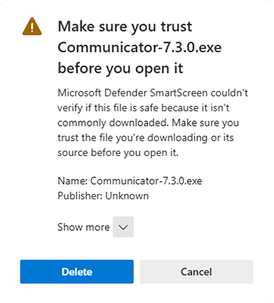
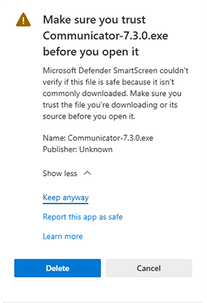
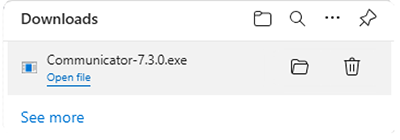
Locate the downloaded file and run it. You may also launch the install from your browser using the “Open File” link.
Step 3 – Running the Installer
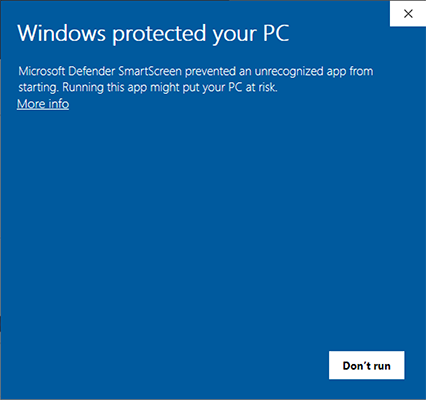
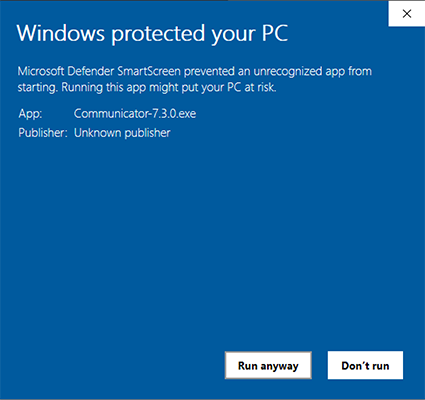
- If SmartScreen shows additional notifications: click More Info, then Run Anyway.
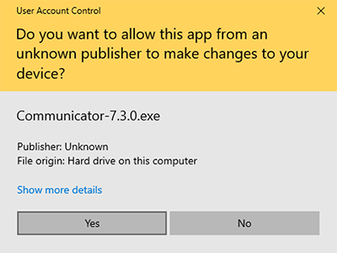
- Click Yes to allow the application.
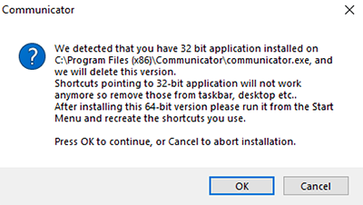
- If you see “32 bit application has been detected,” click OK.
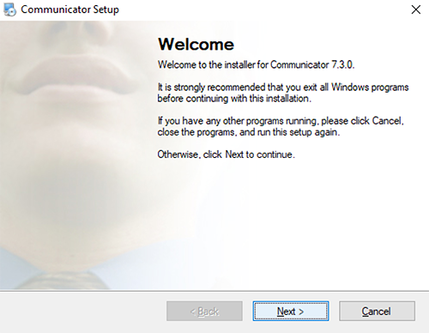
- At the Setup Welcome Screen, click Next.
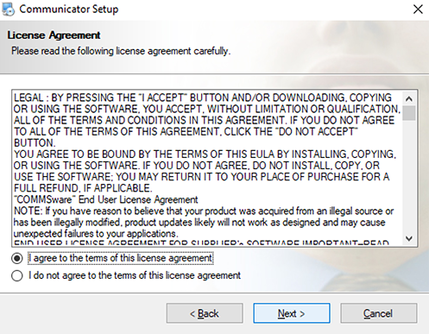
- Accept the EULA by checking “I agree to the terms of this license agreement” and click Next.
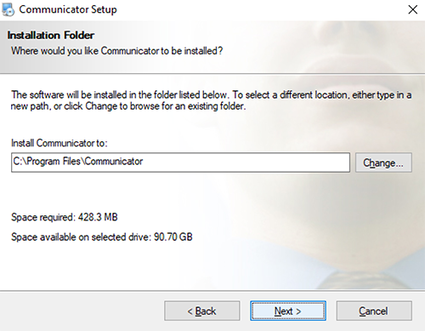
- Leave default installation location and click Next.
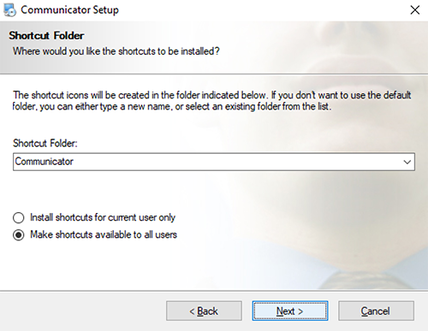
- Leave Shortcut Folder settings as default and click Next.
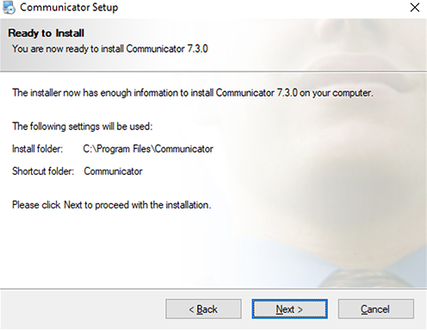
- Confirm your selections and once installation is complete, press Finish.
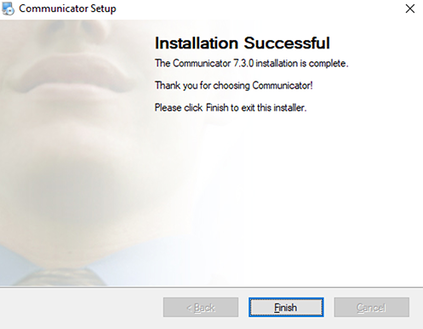
Step 4 – Running the Application after an Upgrade
Launch Communicator from your desktop. Look at the icons below — the icon on the left is for older versions, while the icon on the right is for all newer versions.


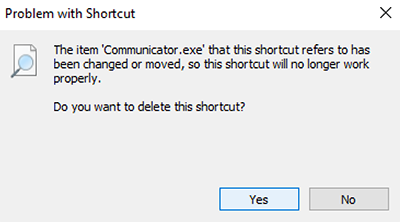
If upgrading: when opening Communicator you may see a “Problem with Shortcut” notification — click Yes.
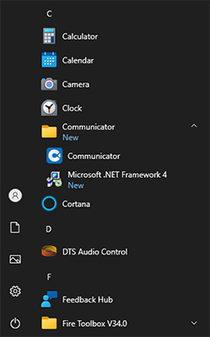
To recreate the shortcut: Start Menu → find “Communicator” → right-click → More → Open file location.
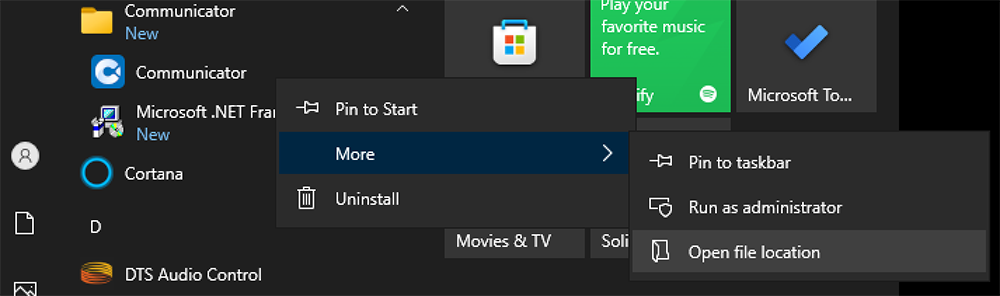
In the file location window: right-click the blue Communicator icon → hover “Send to” → select Desktop (create shortcut).
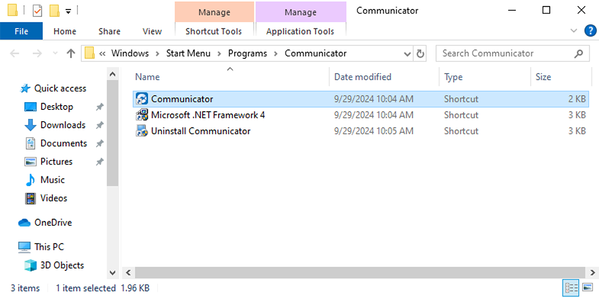
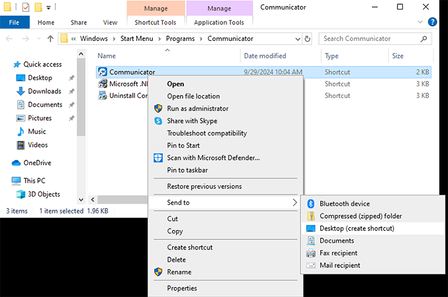
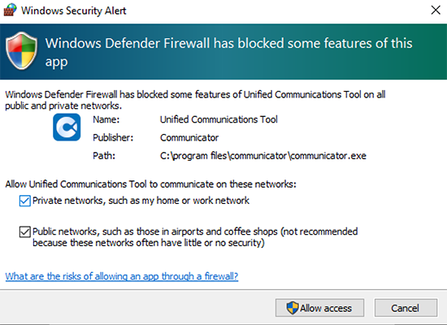
Return to your Desktop and launch the newly created Communicator icon. If you see a Windows Security Alert, check the boxes next to “Private Networks” and “Public Networks” and click Allow access.
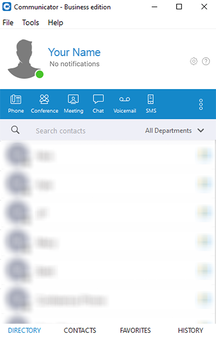
Step 5 – Running the Application for the First Time
- Launch Communicator from your computer’s Desktop.
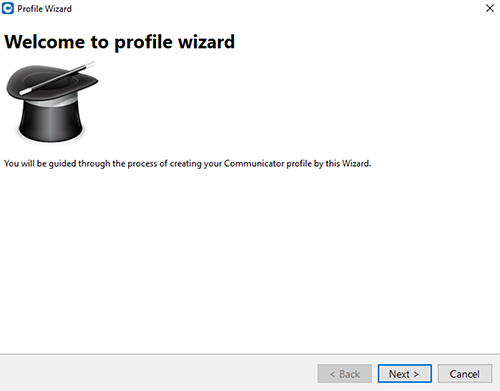
- The Profile Setup Wizard will appear. Click Next.
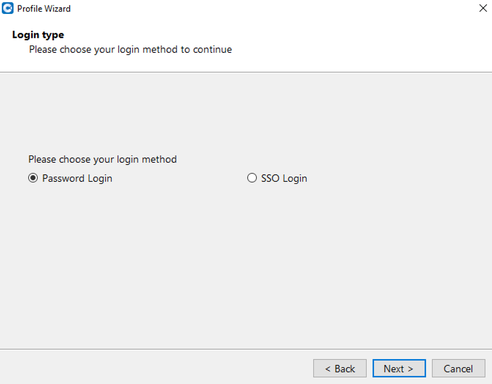
- Select Password Login and click Next.
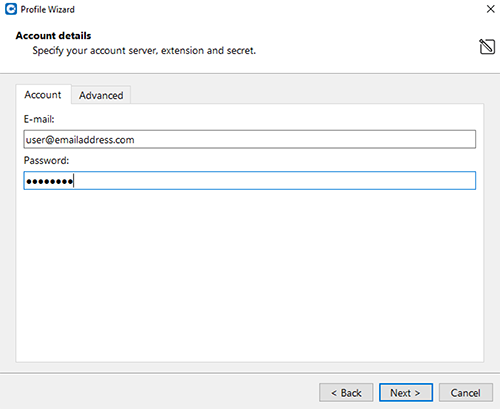
- Enter your e-mail address and password.
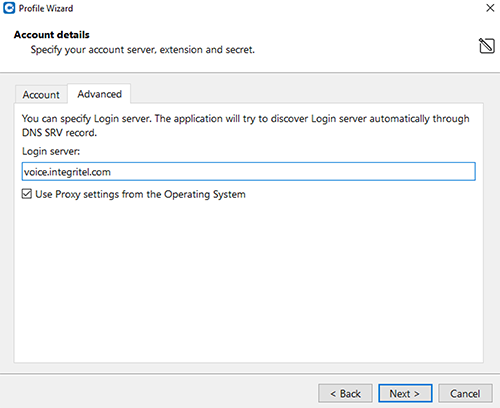
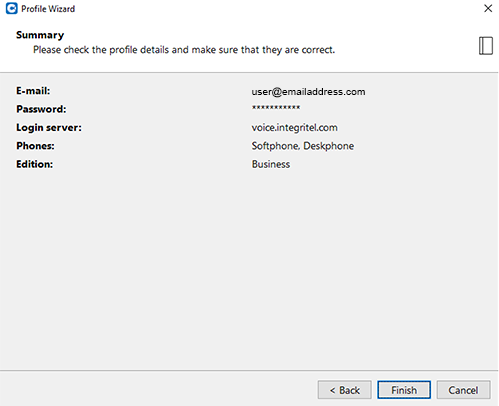
- Click the Advanced tab and enter voice.integritel.com as the login server address. Click Next.
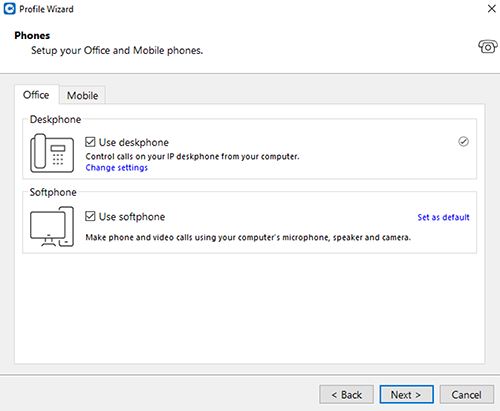
- Choose how you intend to use Communicator (deskphone, softphone, or both). Click Continue, review the summary, and click Done.
Step 6 – Celebrate!
Congratulations! You have now installed and configured the latest version of Communicator.
Note: You may be presented with a Windows Security Alert. If you are, check boxes next to “Private Networks” and “Public Networks” and click Allow access.
For additional questions, please contact support.
Work With IntegriTel
Ready to simplify your technology?
Get a free consultation and see how IntegriTel can support your business — no pressure, no jargon, just honest advice from a team that knows your industry.
Schedule a Free Consultation Explore Our Services