
Installing or Upgrading Communicator GO 7 – Android
Communicator GO 7 – Mobile Application Setup for Android Users
Mobile application licenses must be enabled by support. Please contact support to have your application licenses enabled, and your temporary password set. This must be done prior to completing the steps below. If you are upgrading from a previous version, this step is not necessary.
Please, delete all previous versions of Communicator from your phone before continuing this process.
Downloading The App
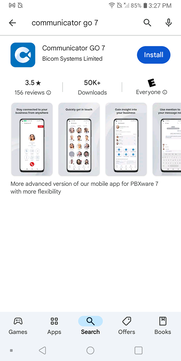
- From the Google Play Store, search for Communicator GO 7.
- Once located, download/install the Communicator GO 7 Application. (See Icon Below)
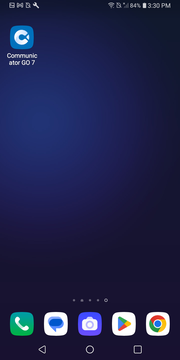
- Once downloaded, press open or launch the mobile app from your Home Screen.
Setup the Mobile App
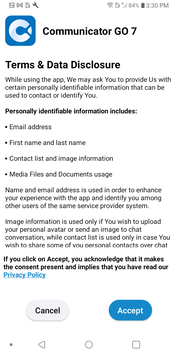
- Once the app is open, you will be asked to accept a Terms and Data Disclosure. You MUST press Allow or Communicator will not function properly.
- You will then be asked to login.
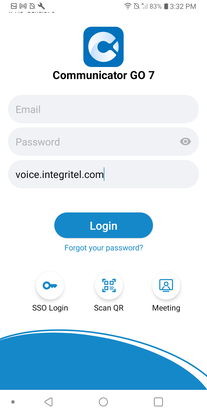
- Type your Login Credentials in the fields provided. If this is your first time, use the temporary password sent by support. If you have forgotten your password, put in a Support Request.
- You MUST type voice.integritel.com in the host field.
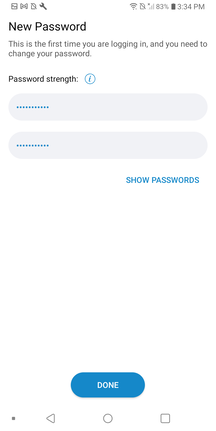
- If you were provided a temporary password, you will be immediately required to change it. Type your new password and press Done.
- If you are upgrading or re-installing, you will not need to change your password.
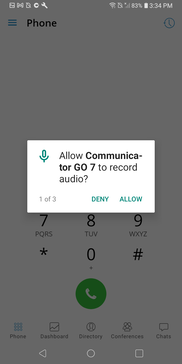
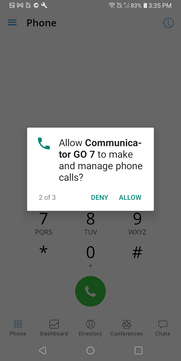
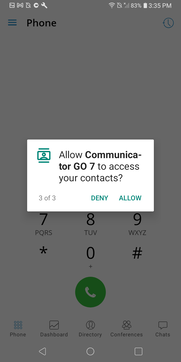
- Once logged in, your phone will ask you a series of questions. Answering the following questions inaccurately will result in your app not functioning properly. Please make the selections instructed below:
- Allow Communicator GO 7 to record audio? → Select Allow.
- Allow Communicator GO 7 to make and manage phone calls? → Select Allow.
- Allow Communicator GO 7 to access your contacts? → Select Allow.
- You will then be asked to grant permission to Communicator Go 7 for Do Not Disturb (DND) handling. To do this, press Open Settings → Click Allow → Toggle the Communicator Go 7 switch ON.
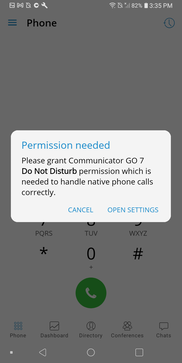
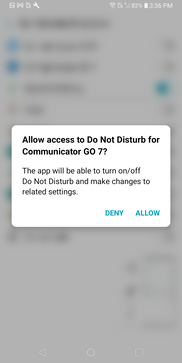
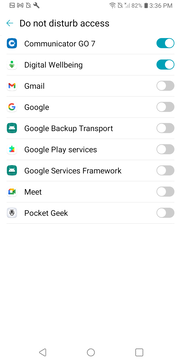
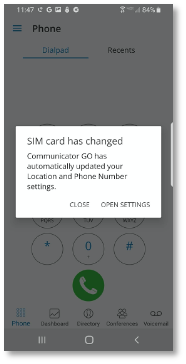
- Once you have completed answering all the questions above, return to the Communicator app. You may see a message stating “SIM card has Changed” — press Close. You will now see your Dial-pad confirming setup is complete.
- Please place a test call to ensure proper functionality.
- You can adjust the quick access buttons and explore additional functionality by pressing the “More” arrow at the bottom of the screen.
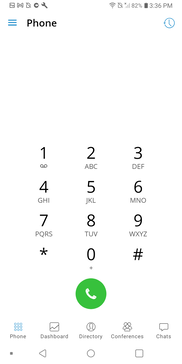
Samsung Galaxy Note
Samsung Galaxy S9 and some later models: You must add the Communicator Go application to “App that will not be put to sleep”:
Settings → Battery → App Power Management → Apps That Won’t Be Put To Sleep
Managing Calls After Hours
The design of this app is that every time your extension is called the app will ring. The app must be running in the background for everything to function properly.
If you would like to stop this feature after hours: press More → Quit, then close the app. To begin receiving calls again, simply re-launch the Communicator GO 7 Application.
For additional questions, please contact support.
Work With IntegriTel
Ready to simplify your technology?
Get a free consultation and see how IntegriTel can support your business — no pressure, no jargon, just honest advice from a team that knows your industry.
Schedule a Free Consultation Explore Our Services