
Installing or Upgrading Communicator v7 – Mac OS
Communicator v7 – Business Edition for Mac OS
Desktop application licenses must be enabled by support. Please contact support to have your application licenses enabled, and your temporary password set. This must be done prior to completing the steps below. If you are upgrading from a previous version, this step is not necessary.
Please do not delete any previous versions of Communicator before completing this step. Doing so may require additional setup steps. Deleting previous versions will be completed at the end of Step 3.
Step 1 – Precautions
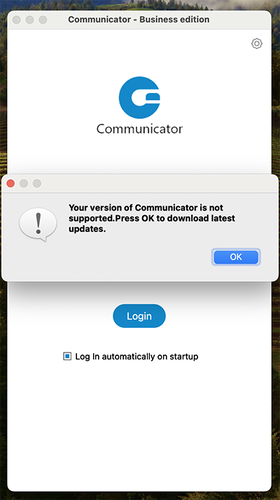
Before you start the upgrade: If you are presented with a message claiming that “Your version of Communicator is not supported”:
- Press OK on the warning message.
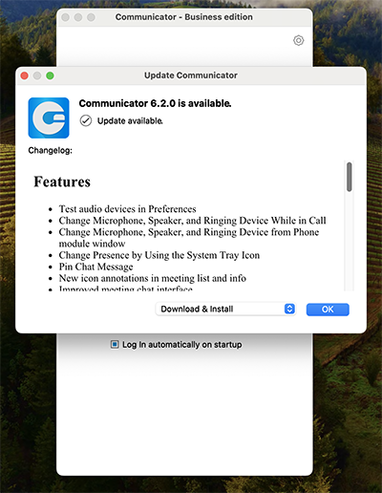
- When presented with the option to upgrade to version 6.2.0, Do not press OK. Instead, press the Red X in the top left-hand corner of the dialog box.
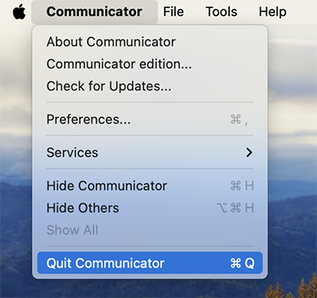
- Go to the top-most left-hand corner of your screen, select the “Communicator” dropdown menu from the menu bar, and select Quit Communicator.
Step 2 – Download and Install / Upgrade Communicator
- Click HERE to download the latest version of Communicator.
- Locate the downloaded file and run it. (By default, it will save to your Downloads folder.)
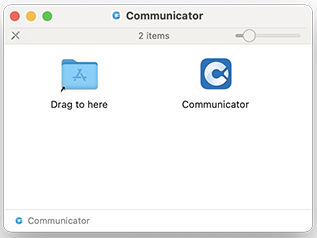
- You will be presented with a dialog box. Drag and drop “Communicator” to the folder labeled “Drag to here”.
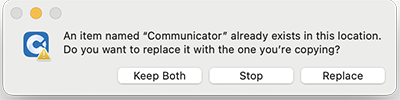
- If you see a message that “Communicator” already exists, click Replace.
Step 3 – Run the Application
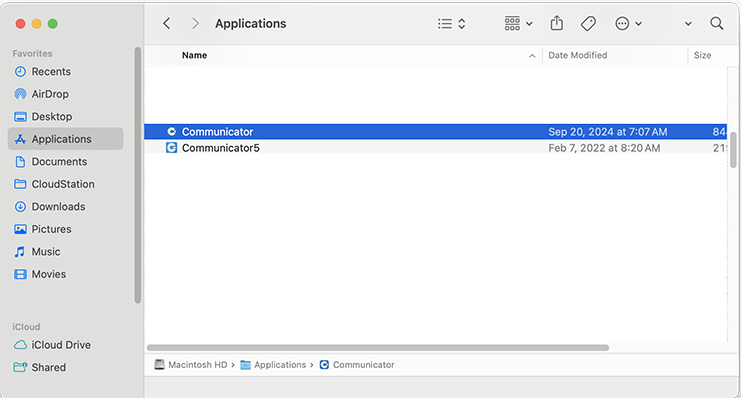
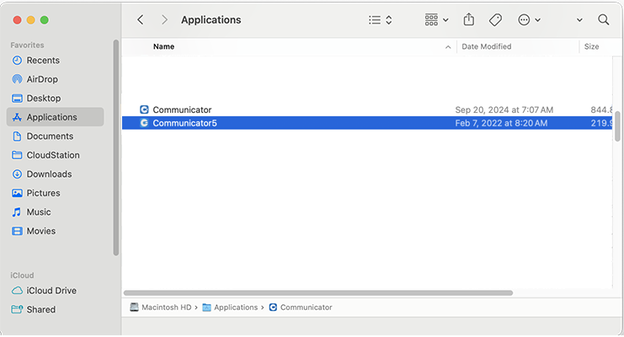
- Open the new Communicator Application from Finder → Applications. If upgrading, you may see multiple versions — select the file with no version number after it.
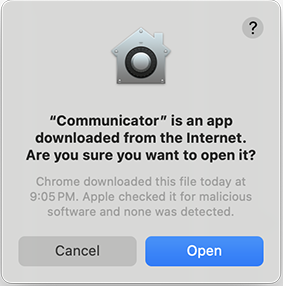
- Upon first launch, you may see a message about Communicator being downloaded from the internet. This is normal. Press Open.
- If this is your first time installing, proceed to Step 4.
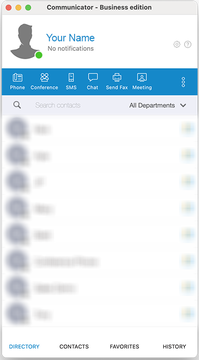
- If you are upgrading, this should launch the application as expected. No other steps are necessary for the upgrade. Go back to your Finder → Applications folder and delete any previous versions of Communicator (e.g., Communicator 5).
Step 4 – Configuring Communicator (First Time Installs Only)
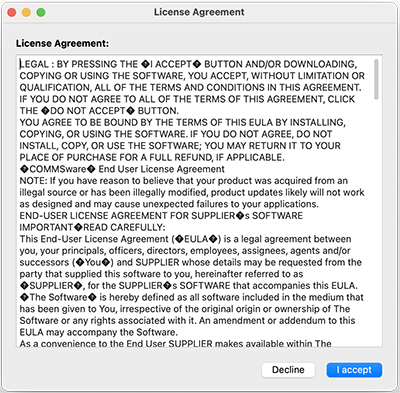
- You will be presented with the EULA (Electronic User License Agreement). Click I Accept.
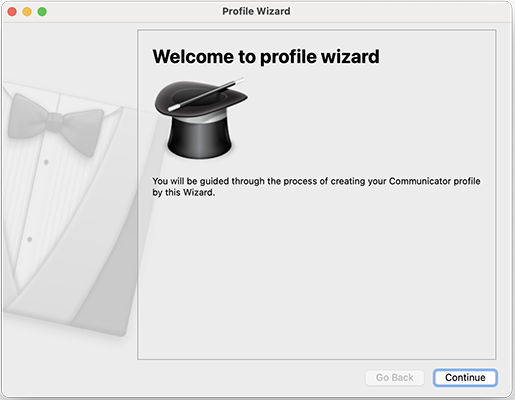
- Once accepted, you will see the Profile Setup Wizard. Click Continue to begin setup.
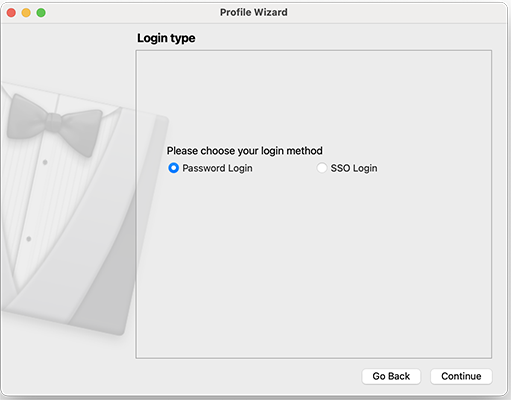
- You will be asked to select your “Login Type”. Select Password Login and click Continue.
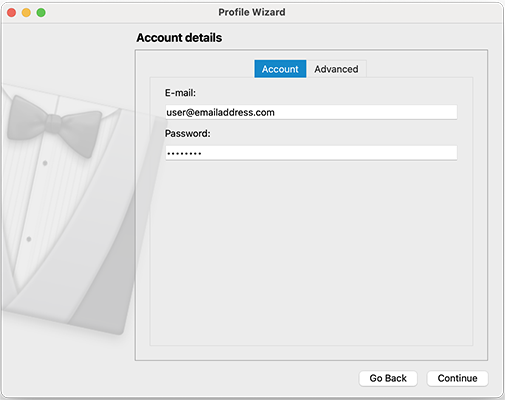
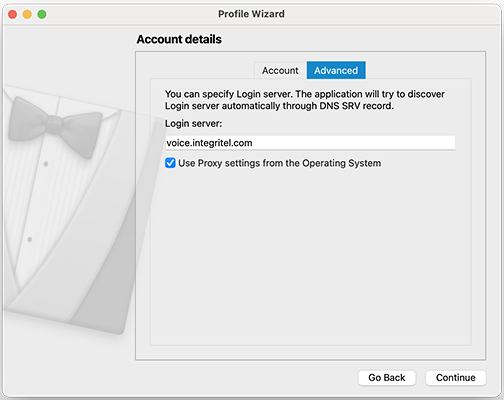
- Enter your e-mail address and password. Click the Advanced tab and enter voice.integritel.com as the login server address.
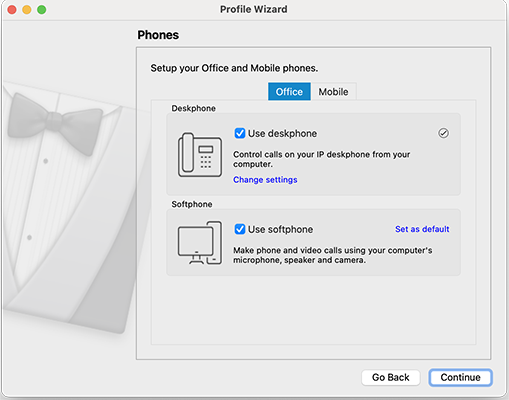
- You will then be asked how you intend to use Communicator:
- Use deskphone only: Companion to a physical desk phone, no computer audio.
- Use softphone only: Computer speakers/microphone for calls only.
- Both deskphone and softphone: Use both simultaneously.
- Neither: Fax functionality only, no call capabilities.
- Once you have made your selections, click Continue.
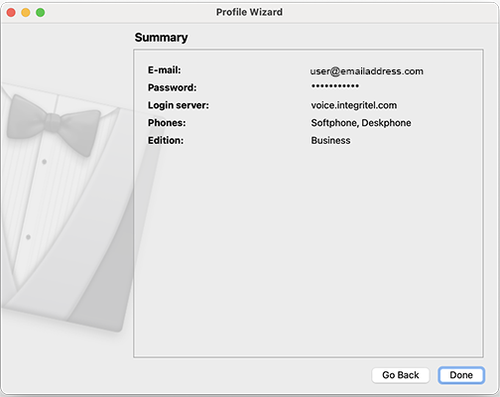
- Review the summary and click Done.
Step 5 – Celebrate!
Congratulations! You have now installed and configured the latest version of Communicator.
For additional questions, please contact support.
Work With IntegriTel
Ready to simplify your technology?
Get a free consultation and see how IntegriTel can support your business — no pressure, no jargon, just honest advice from a team that knows your industry.
Schedule a Free Consultation Explore Our Services